Video

New

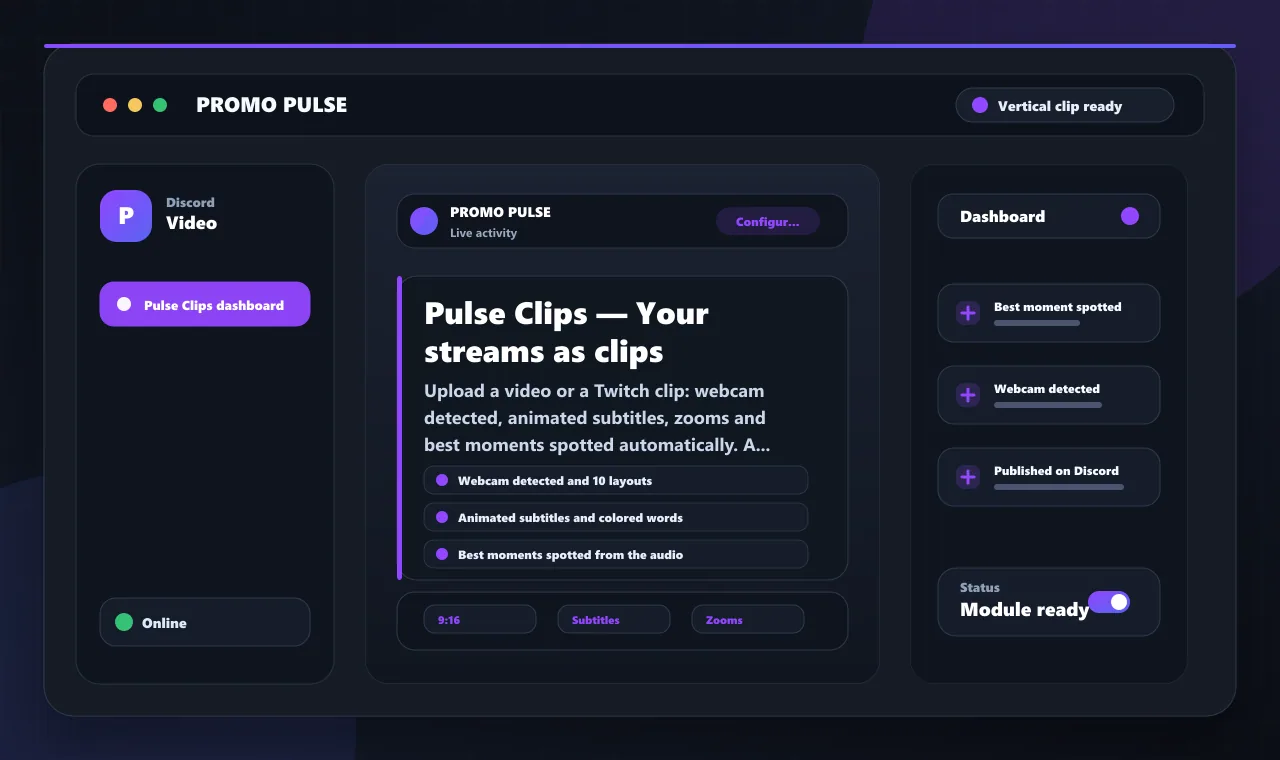
Pulse Clips — Your streams as clips

Upload a video or a Twitch clip: webcam detected, animated subtitles, zooms and best moments spotted automatically. A vertical clip ready for TikTok, Reels and Shorts.

Pulse Clips — Your streams as clips

What it does

Pulse Clips — Your streams as clips

Pulse Clips turns the highlights of your streams into vertical clips for TikTok, Instagram Reels and YouTube Shorts: webcam detection, 10 layouts, word-by-word animated subtitles with highlighted words, automatic zooms, silence cutting, best moments spotted from the audio, a full editing studio and publishing on Discord, all from the dashboard.

Who it is for Streamers and server teams who want to post their best moments on TikTok, Reels and Shorts without editing software.
Tip

À combiner avec Pulse Live Alerts: annonce le live, puis partage ses meilleurs moments.

Highlights

  • Webcam detected and automatic vertical layout
  • Animated subtitles, zooms and silence cutting
  • Best moments of a long video spotted from the audio

How it works

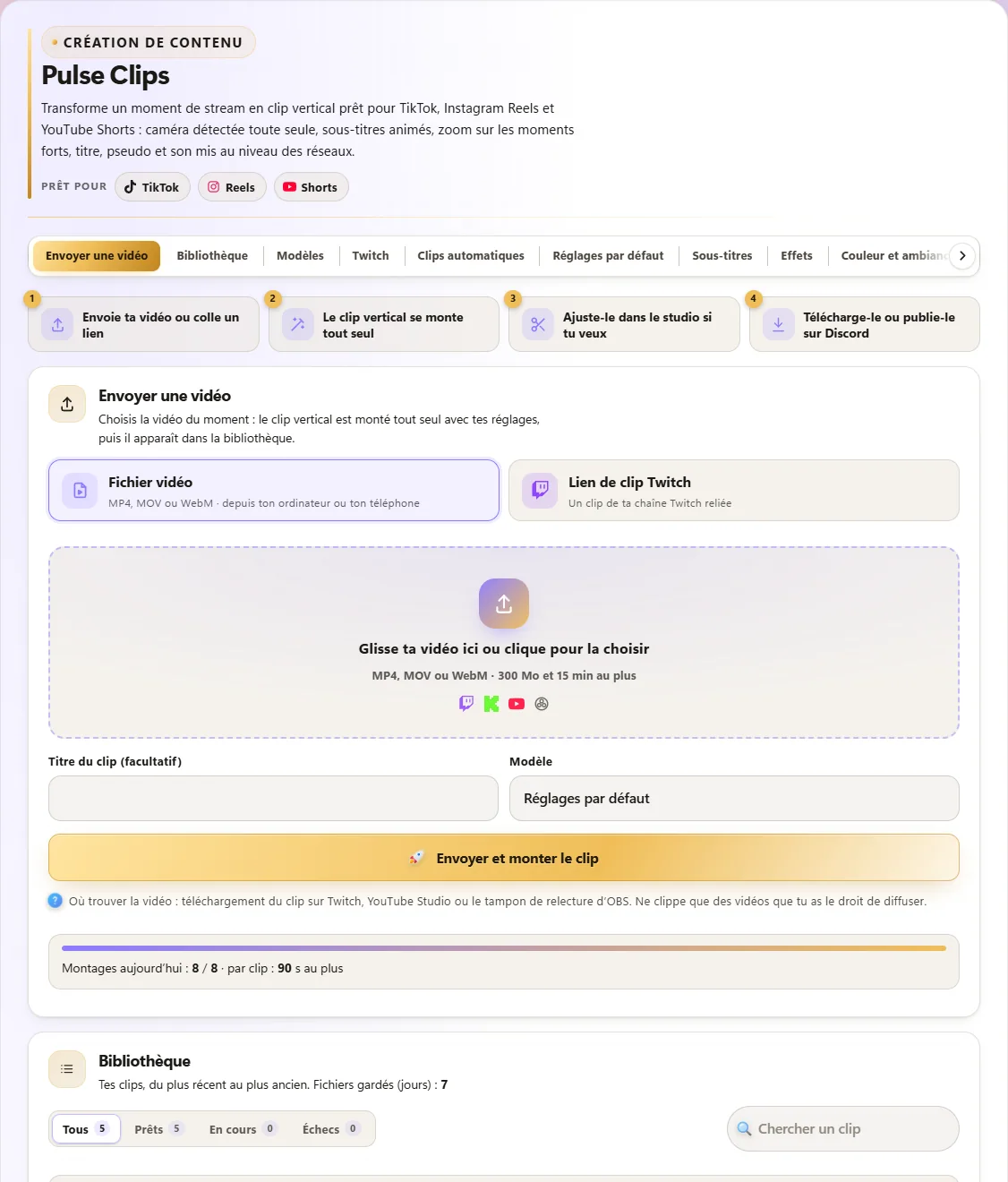
  1. 1 Turn on Pulse Clips in the dashboard
  2. 2 Upload a video or paste a Twitch clip link
  3. 3 Fine-tune in the studio, then download or publish on Discord

Linked commands

Pulse Clips dashboard

Platforms

TikTokInstagram ReelsYouTube ShortsTwitch

Frequently asked questions

I can’t paste a Kick or YouTube link.
Kick and YouTube don’t allow their videos to be downloaded from another site. Download the video (YouTube Studio, Kick), then upload the file with “Video file”.
A Twitch clip link is refused.
Only clips from the Twitch channel linked to the server can be fetched: first link the channel in the Twitch block of Pulse Clips.
My clip has no subtitles.
Check that “Animated subtitles” is on, then re-edit the clip. A video without sound or speech can’t be subtitled.
Open the full guide